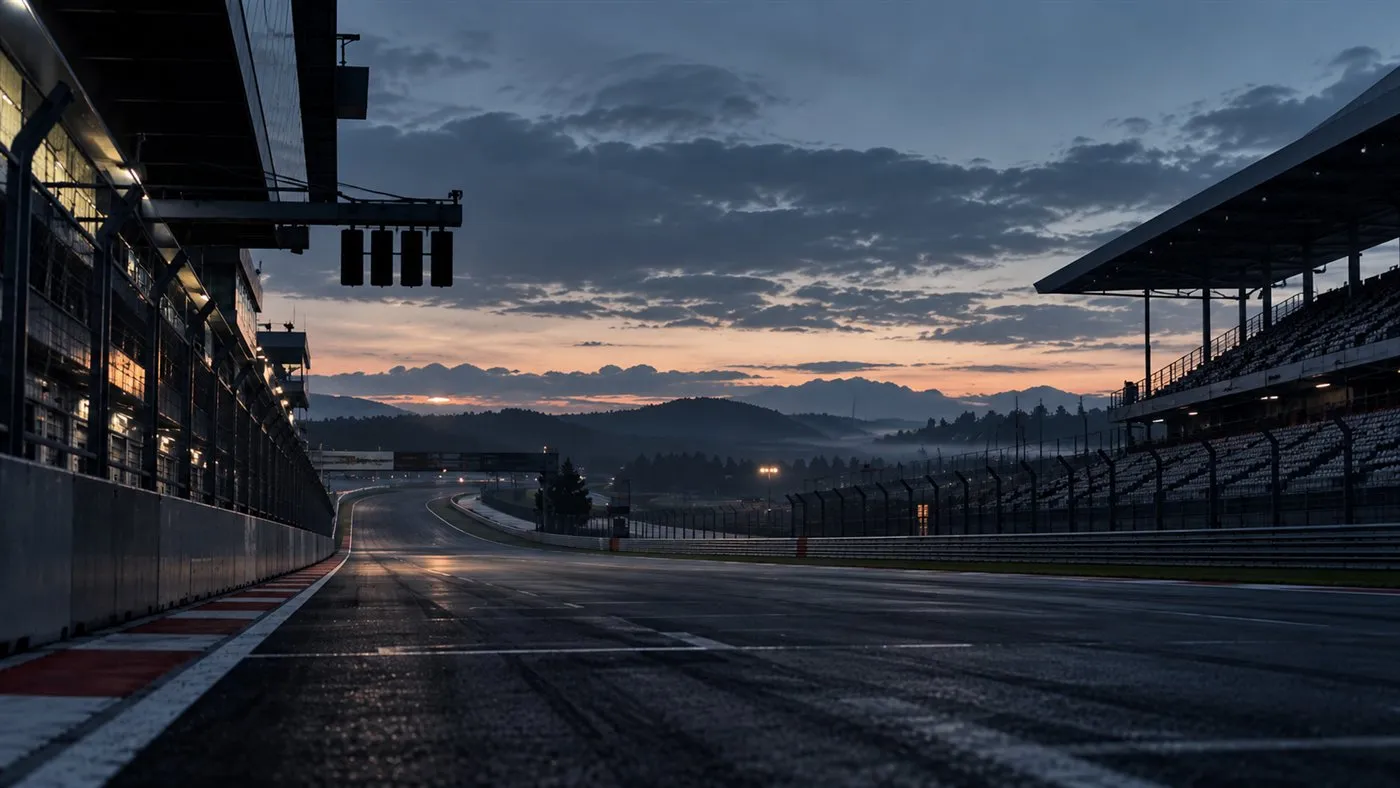
Free overlays for iRacing
Easy to set up.
Ready for any race.
Everything is set up in one window, and you see each change right away. Sprint or endurance, dry or wet — the data you need is always on screen.
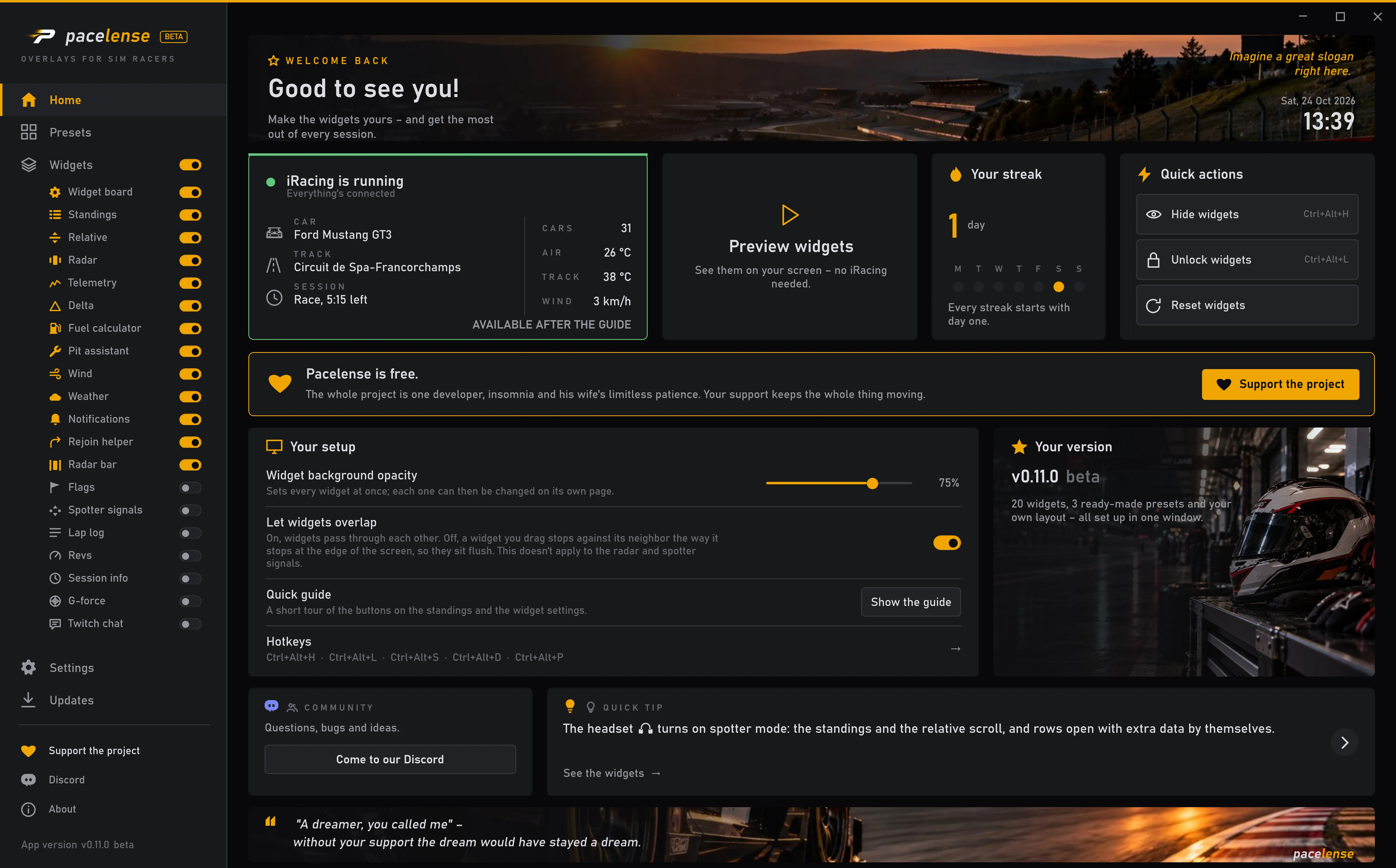
The settings window
See what each setting does on the preview before you hit the track
In the race
Everything a race engineer would tell you, on your screen.
A car in your blind spot, fuel to the finish, a wet track — it's all there without taking your eyes off the apex.
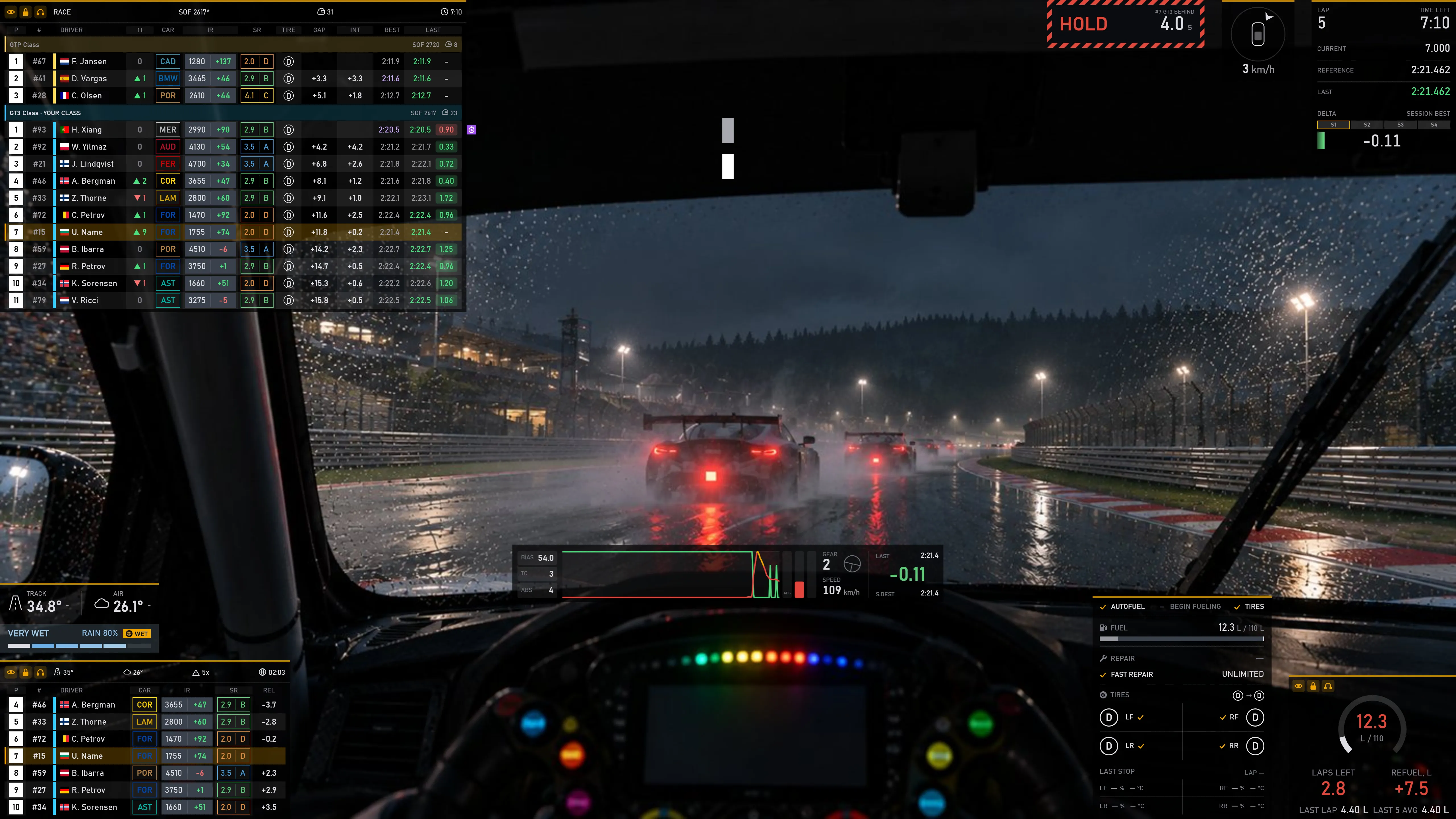
Race engineerrejoinHold, GT3 behind — here in 4 seconds.
Race engineerdeltaGood pace — 0.11 up on your best lap.
Race engineerweatherTrack is very wet, rain at 80%.
Race engineerfuelFuel for 2.8 laps — add 7.5 liters at your pit stop.
Hide the widgets with one button
Taking a screenshot, watching a replay, or just want the track? One press hides every widget, another brings them back exactly as they were.
Arrange the widgets right in the sim
Unlock the widgets with the padlock, drag them where you want, and lock them again. No need to leave the sim, and the layout is remembered.
Switch to spotter mode
Need the whole picture? One press and the table scrolls through every car and adds the columns an engineer watches. Press again to get back to racing.
All widgets
See the full list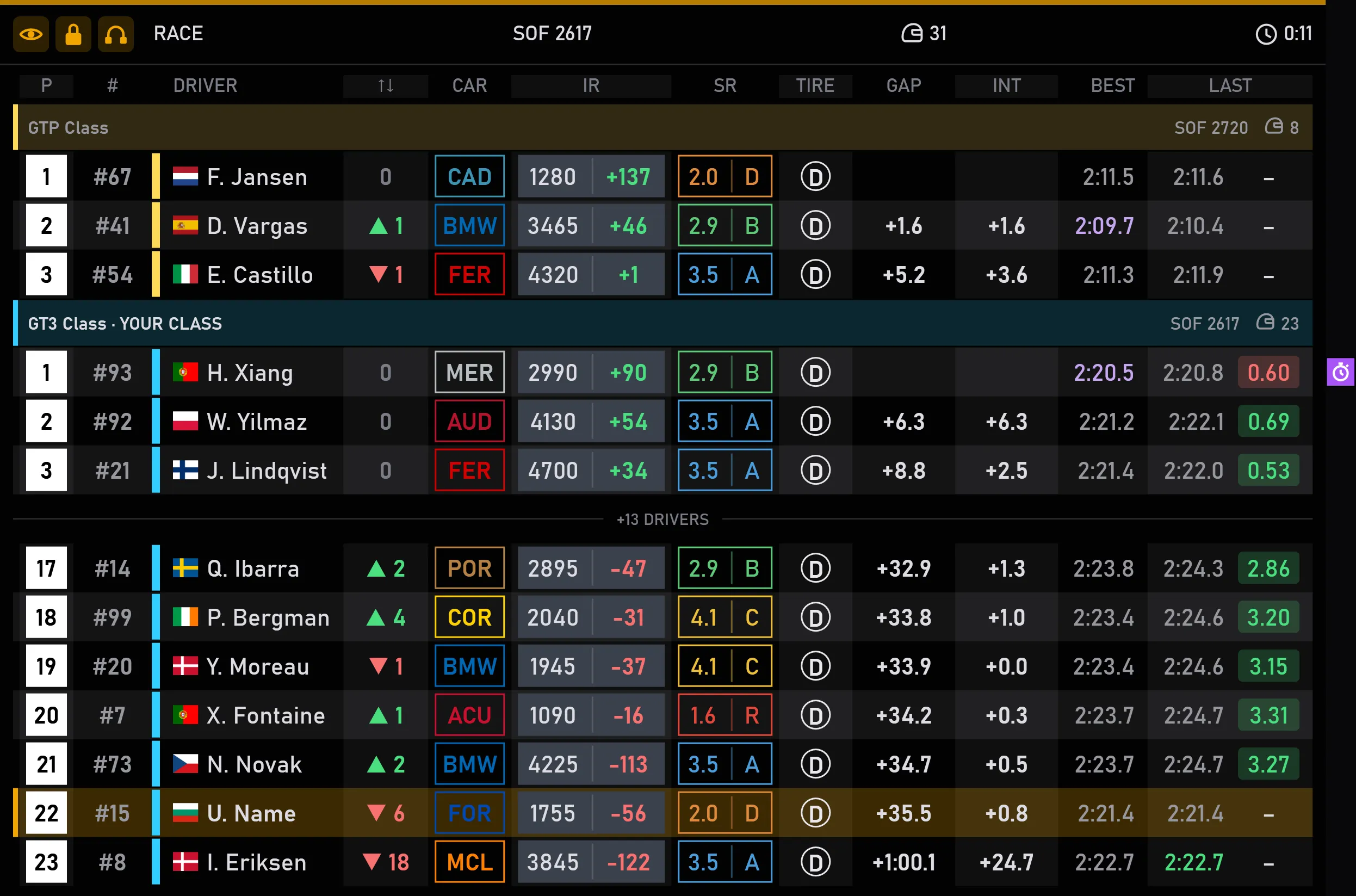
Driver names in this screenshot have been changed, along with their numbers, ratings, and countries.
Standings
The running order, grouped by class
More than just positions: see who is in the pits, who is on an out-lap, who holds the class best lap, who is a lap ahead — and much more.
More about it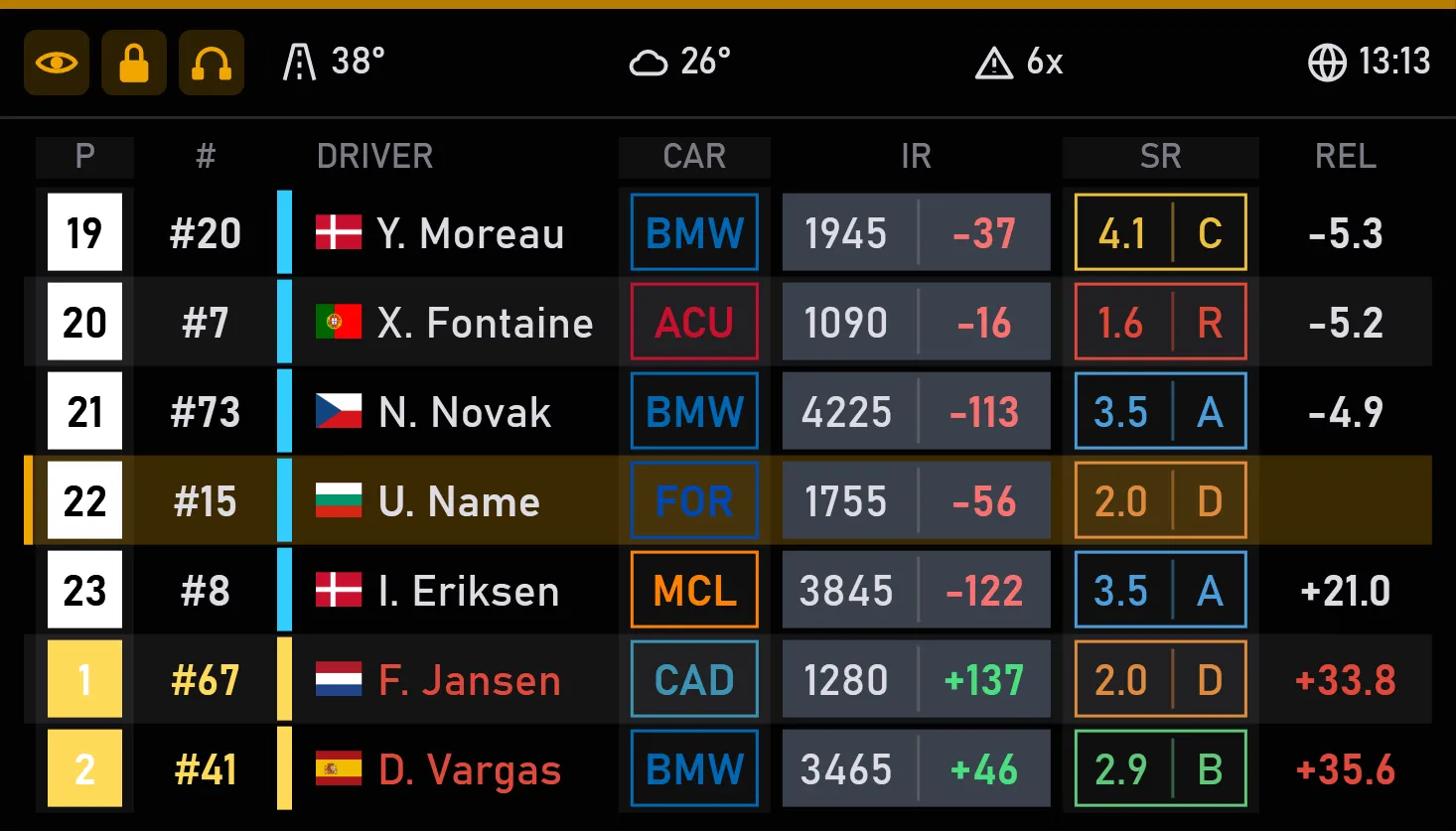
Driver names in this screenshot have been changed, along with their numbers, ratings, and countries.
Relative
Who is catching you, and who you are catching
Your neighbors on track, not in the table: the cars that will show up in your mirrors or ahead of you in the next few seconds. And for each of them, the same choice of columns as in the standings.
More about it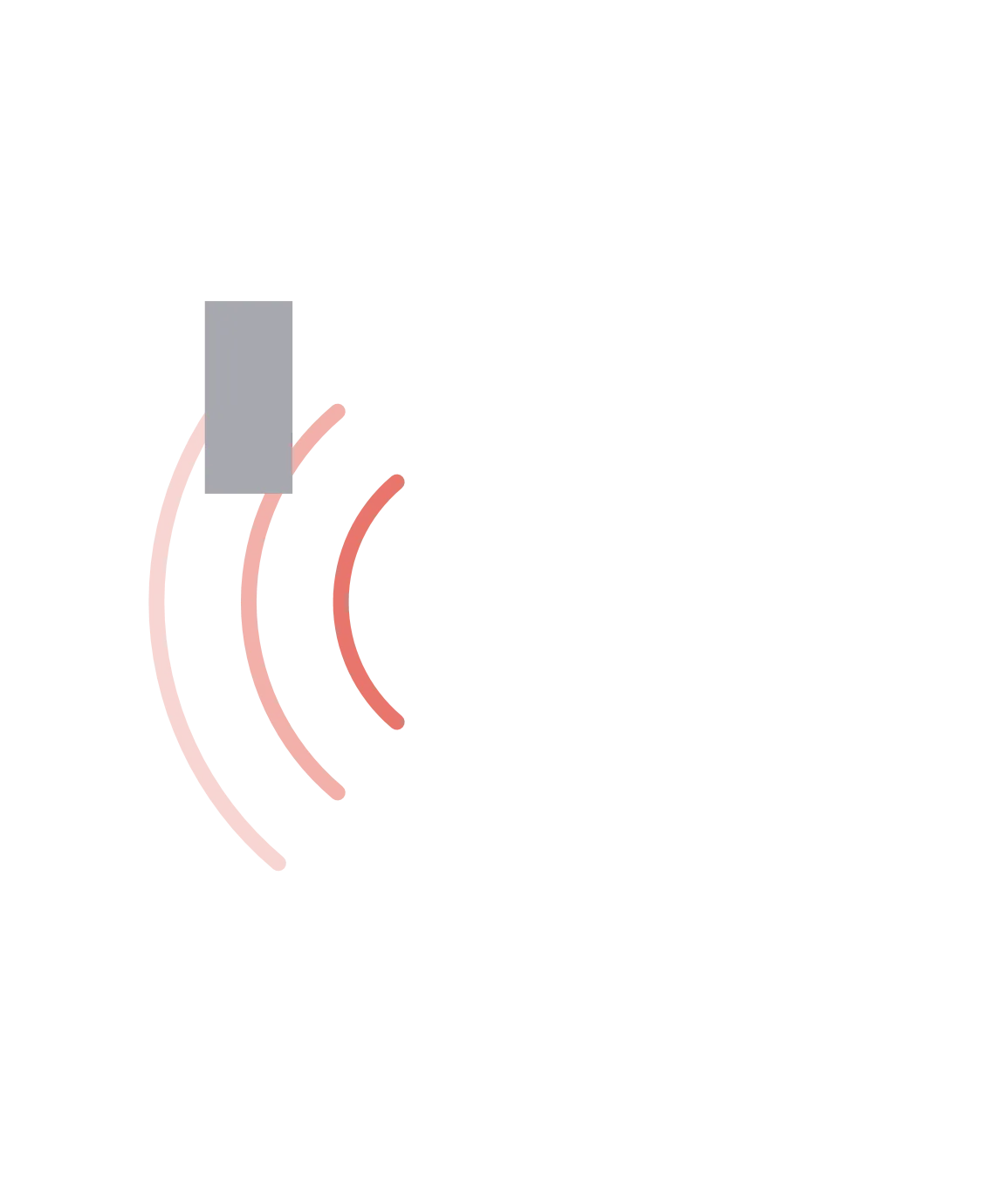
Radar
Side by side, with no surprises: you always know where the other car is
It shows what your mirrors don't: a car in your blind spot. Red means side by side, amber means close but not alongside yet.
More about it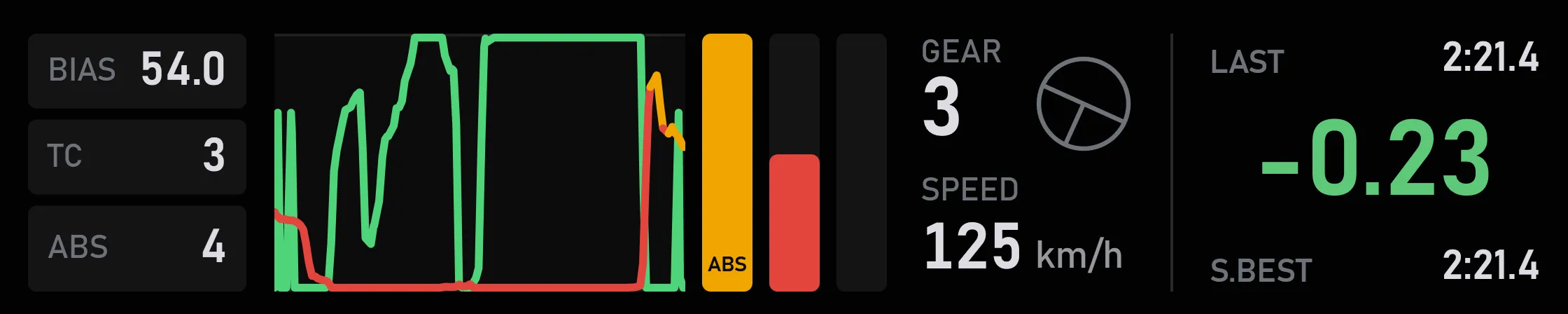
Telemetry
Throttle and brake as live graphs
See how you work the pedals: whether you release the brake smoothly, how you feed in the throttle through the corner, and where ABS stepped in.
More about it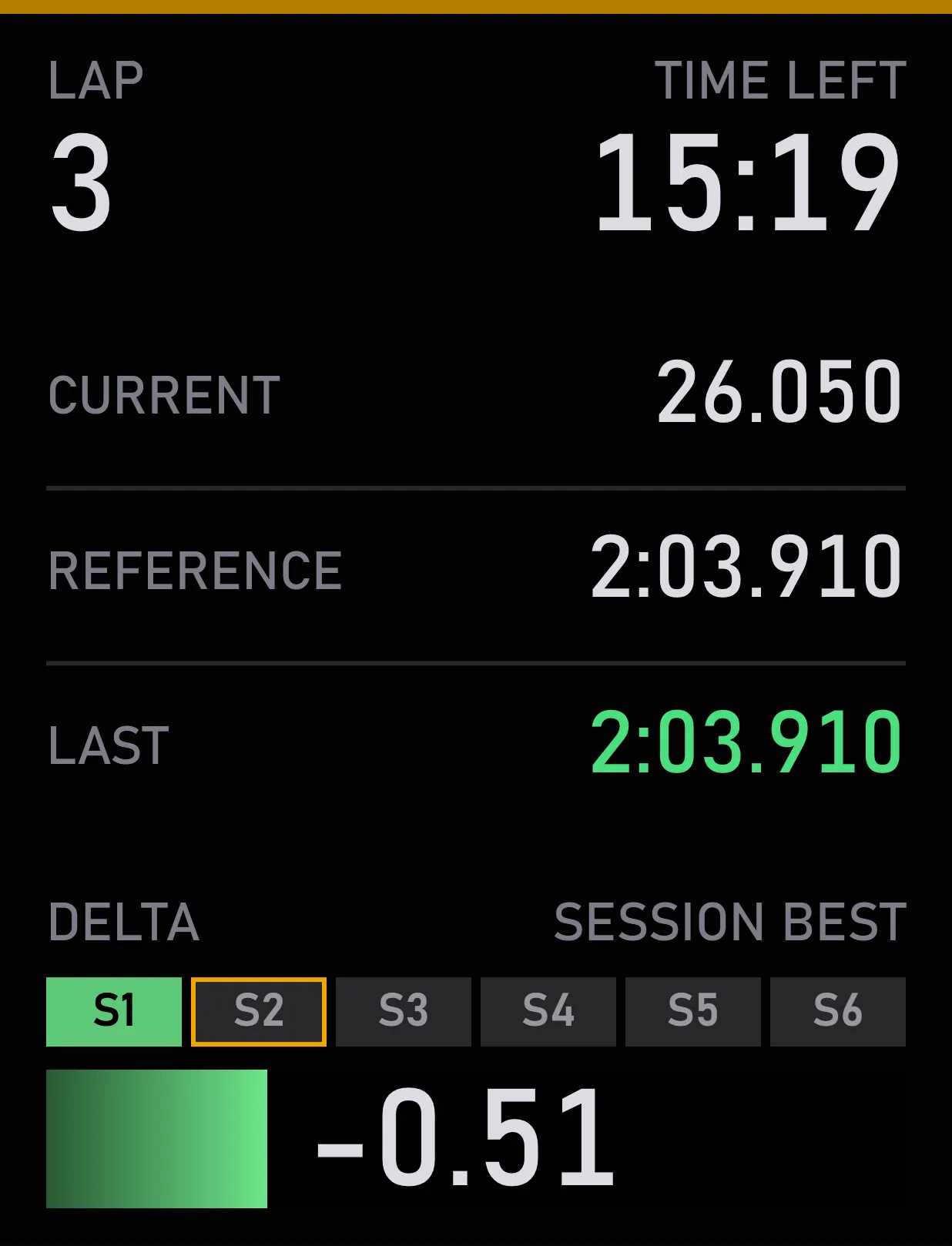
Delta
Your time against a reference lap
Shows whether you're faster or slower than your reference lap, and which sector you lost time in. Switch the reference with one key or a wheel button, right on the move.
More about it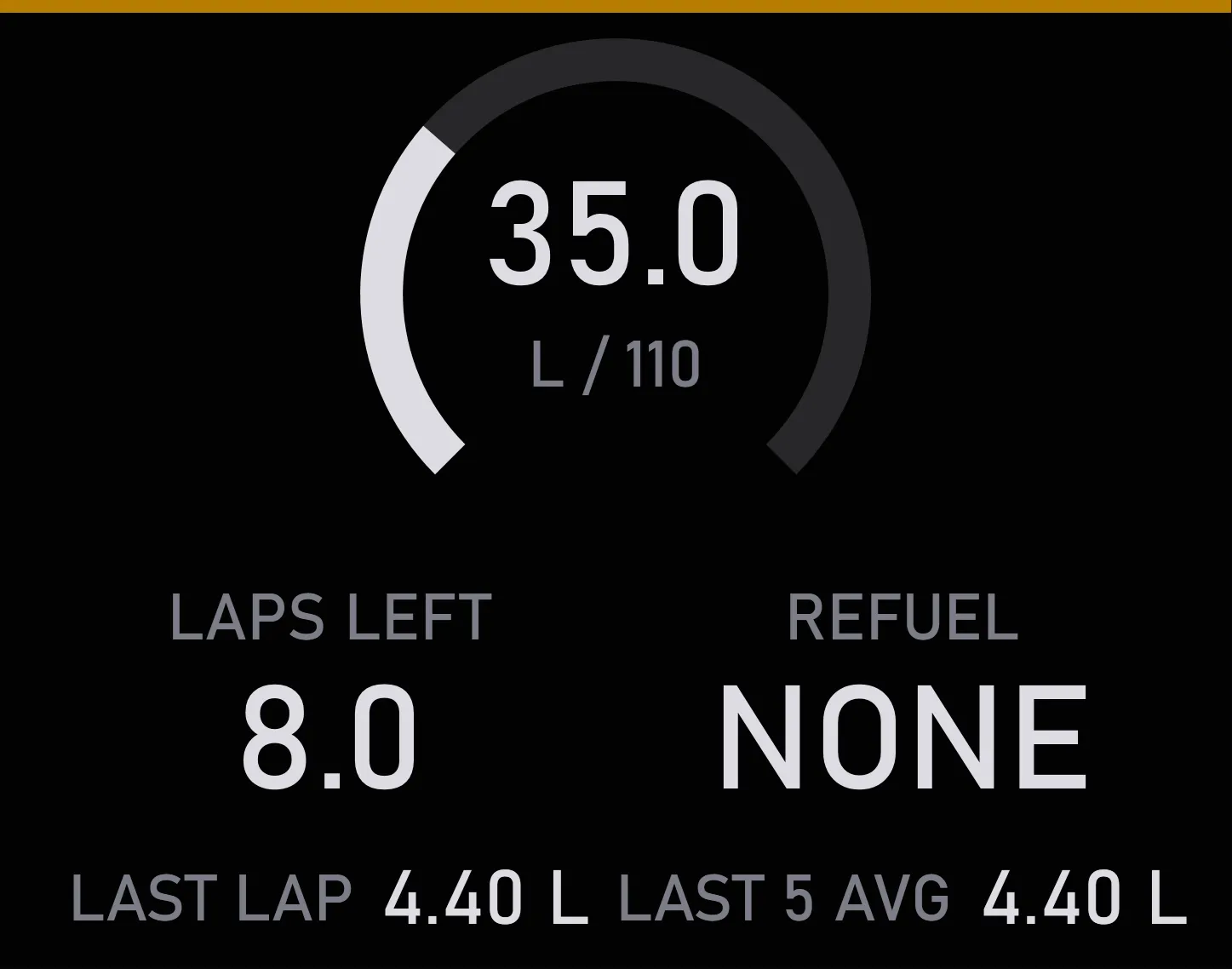
Fuel calculator
Laps left in the tank, and how much to add
All your fuel numbers in one place: how many laps it will last, how much to add at the stop, the last lap's use and the average.
More about it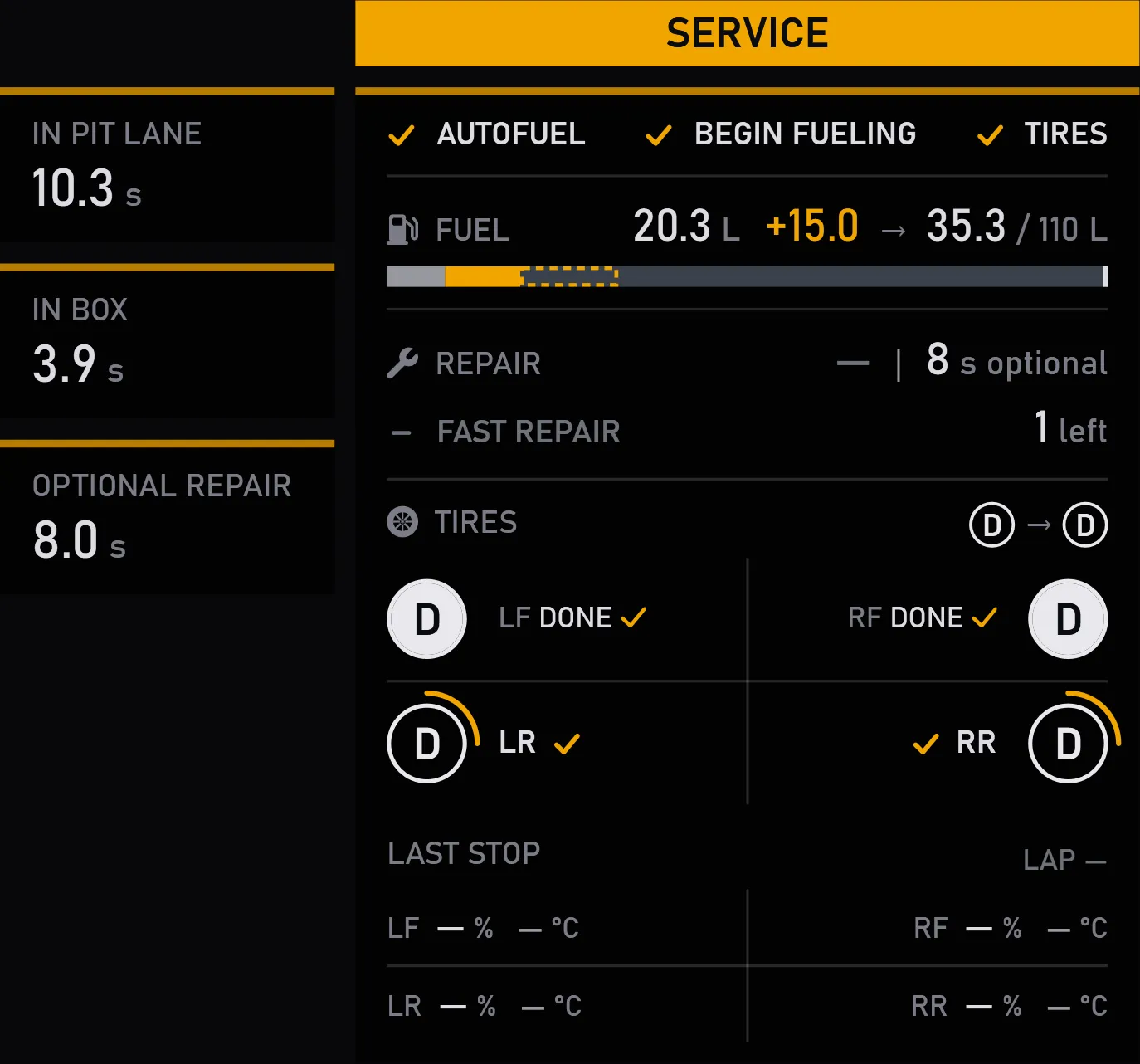
Pit assistant
Everything you need to know about your pit stop
Your whole pit stop on one screen: how far to your box and whether you're over the limit, what the crew will do and what's already done, and how much time the stop cost you.
More about it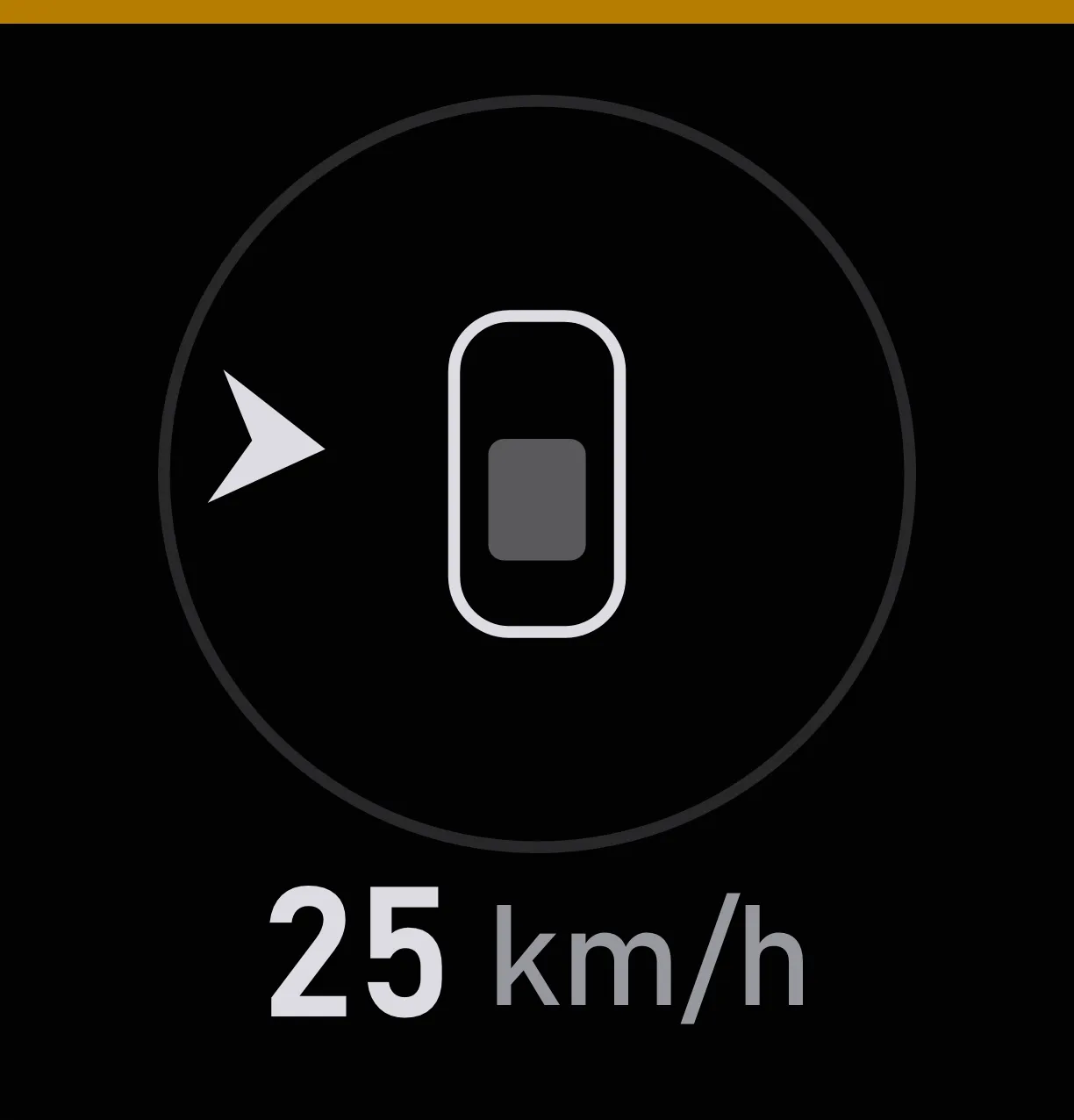
Wind
Where the wind is coming from, and how strong
Shows where the wind is coming from relative to your car. On a long straight, a headwind can cost you tenths.
More about it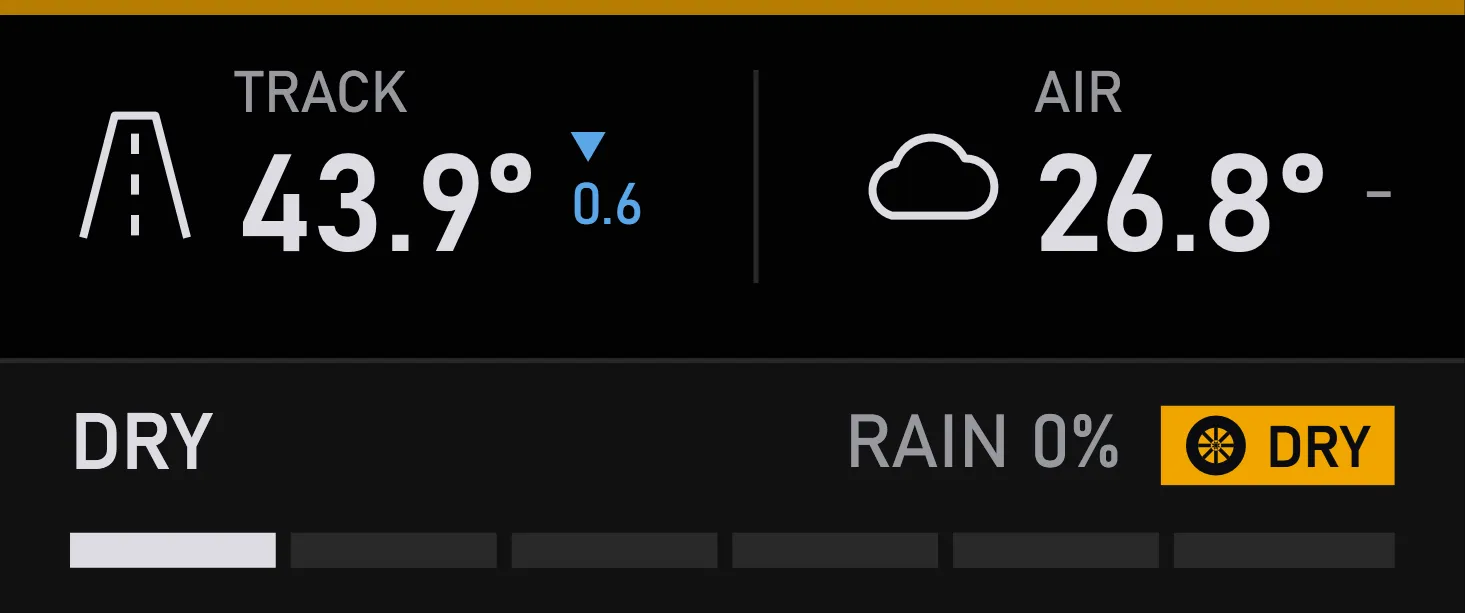
Weather
Temperatures, rain and the state of the track
Track and air temperature, whether it's raining and how wet the track is. And an arrow tells you whether it's warming up or cooling down.
More about it
Notifications
Box calls, incidents and the rest of the race news, right on time
All the important messages in one place: a new line always appears at the bottom, so your eye knows where to look. No messages, no widget.
More about it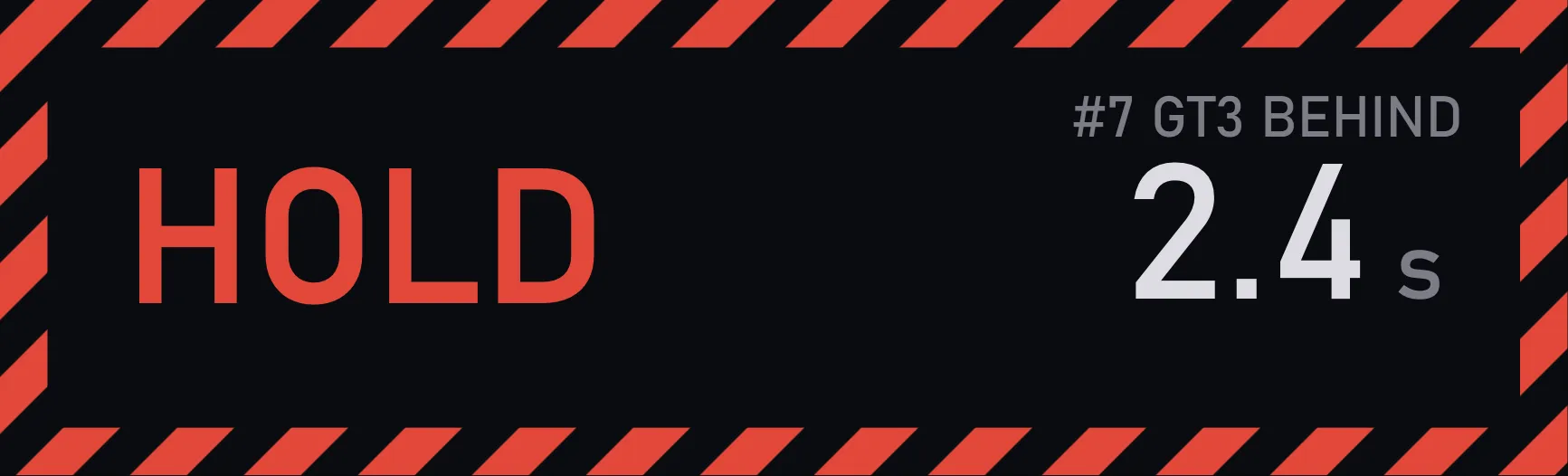
Rejoin helper
Tells you when it's safe to rejoin after a spin
Spun off? It tells you whether to wait or go: HOLD while a car is about to reach your spot, CLEAR when the way is free.
More about it
Radar bar
Who's alongside, and how far up they've drawn
Shows not just that someone is alongside, but how far up they are: the bar at that side fills along the part of your car they cover.
More about it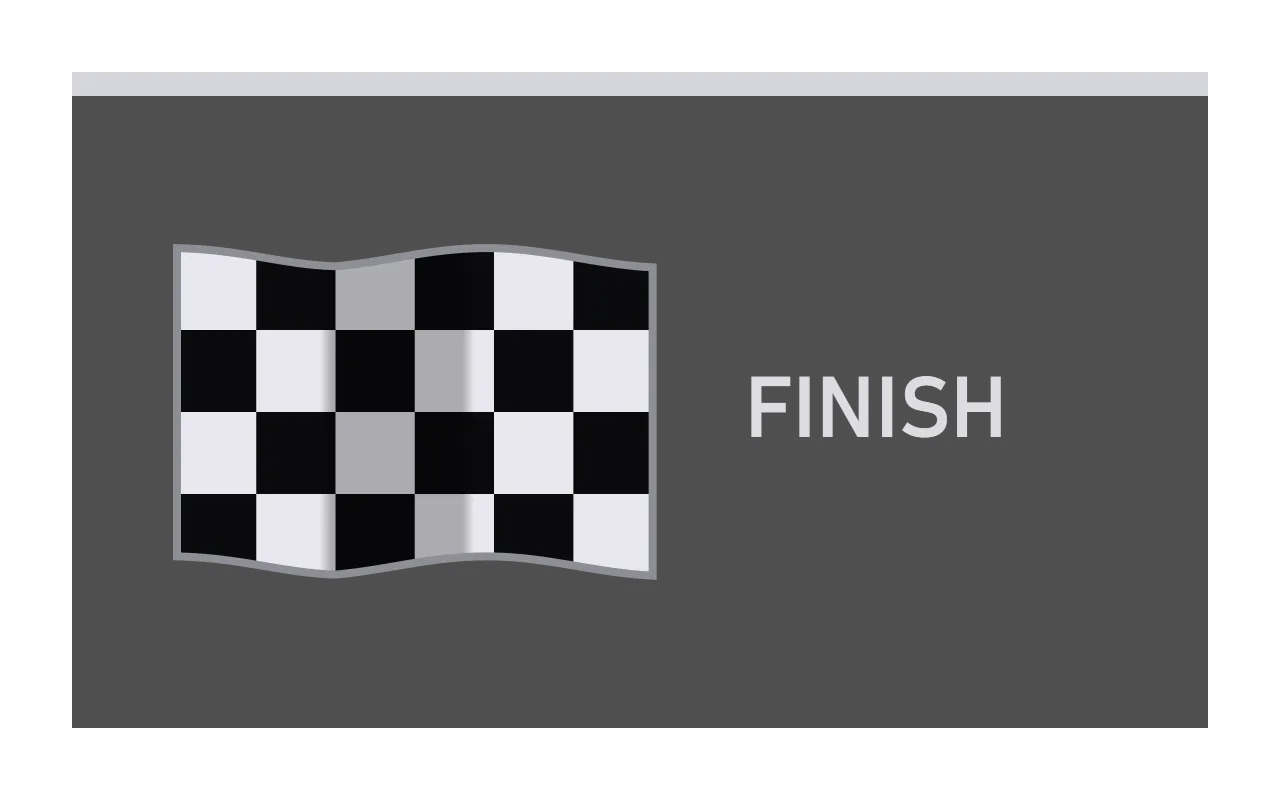
Flags
What race control is telling you
Just the flag, no words: you notice a color faster than you read. No flag, no widget — so its appearing is the signal itself.
More about it
Spotter signals
A light when somebody is beside, in front or behind
Lights at the edges of the screen come on when someone is beside you, in front or behind. You catch them out of the corner of your eye without taking your eyes off the apex.
More about it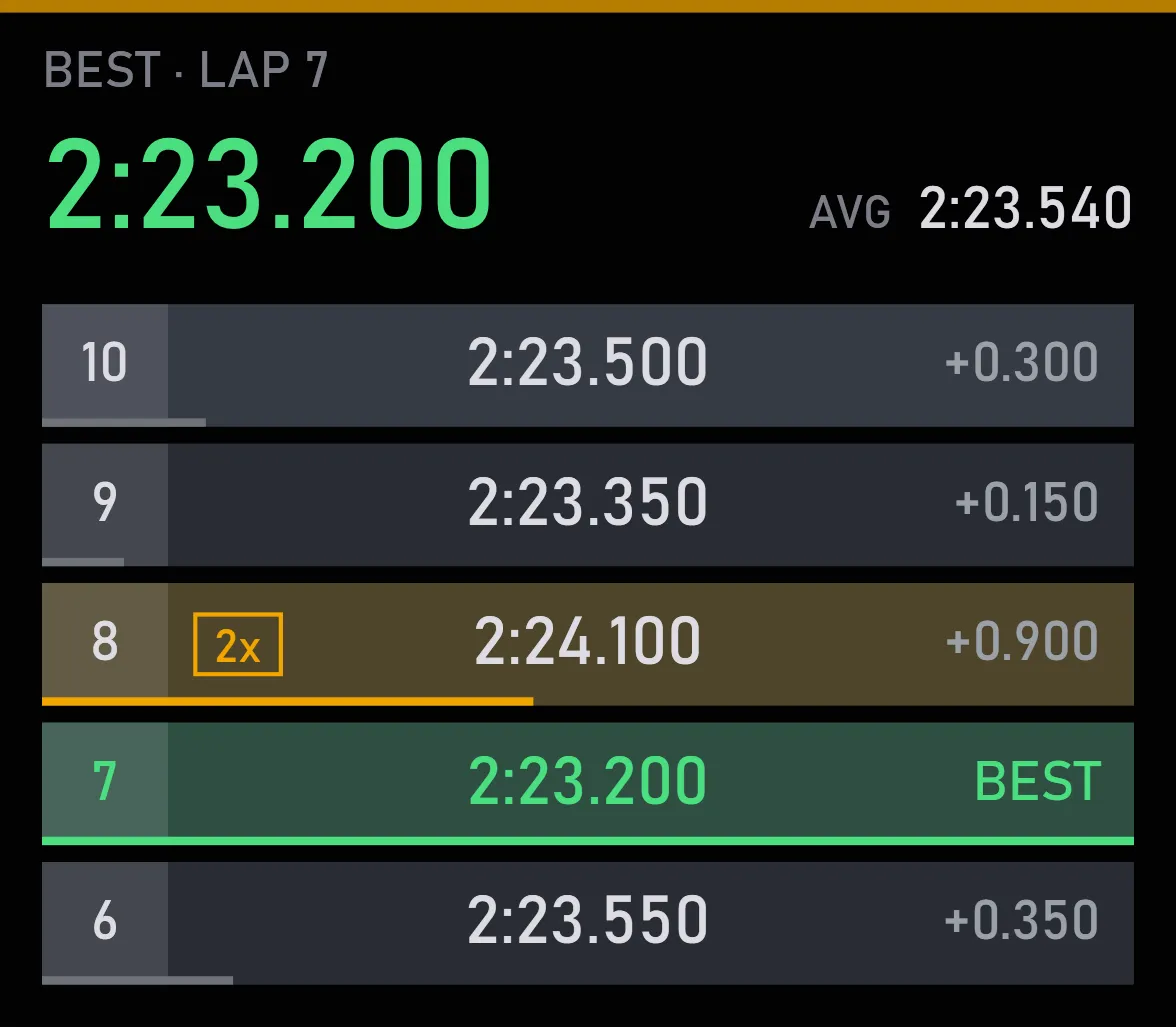
Lap log
Your lap times this session, the best one on top
Every lap of this session in one list, newest on top, with your best and your average above it. You can tell at a glance whether you're getting faster.
More about it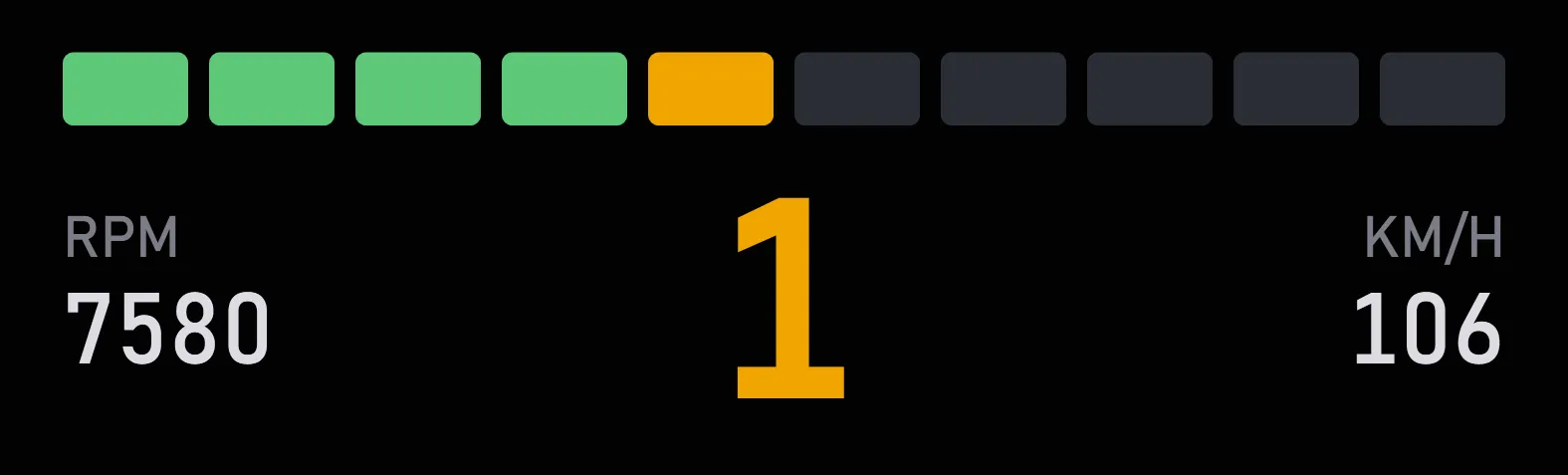
Revs
Gear, revs, speed and shift lights
Gear, revs and speed, big and in plain sight. When it's time to shift, the lights tell you.
More about it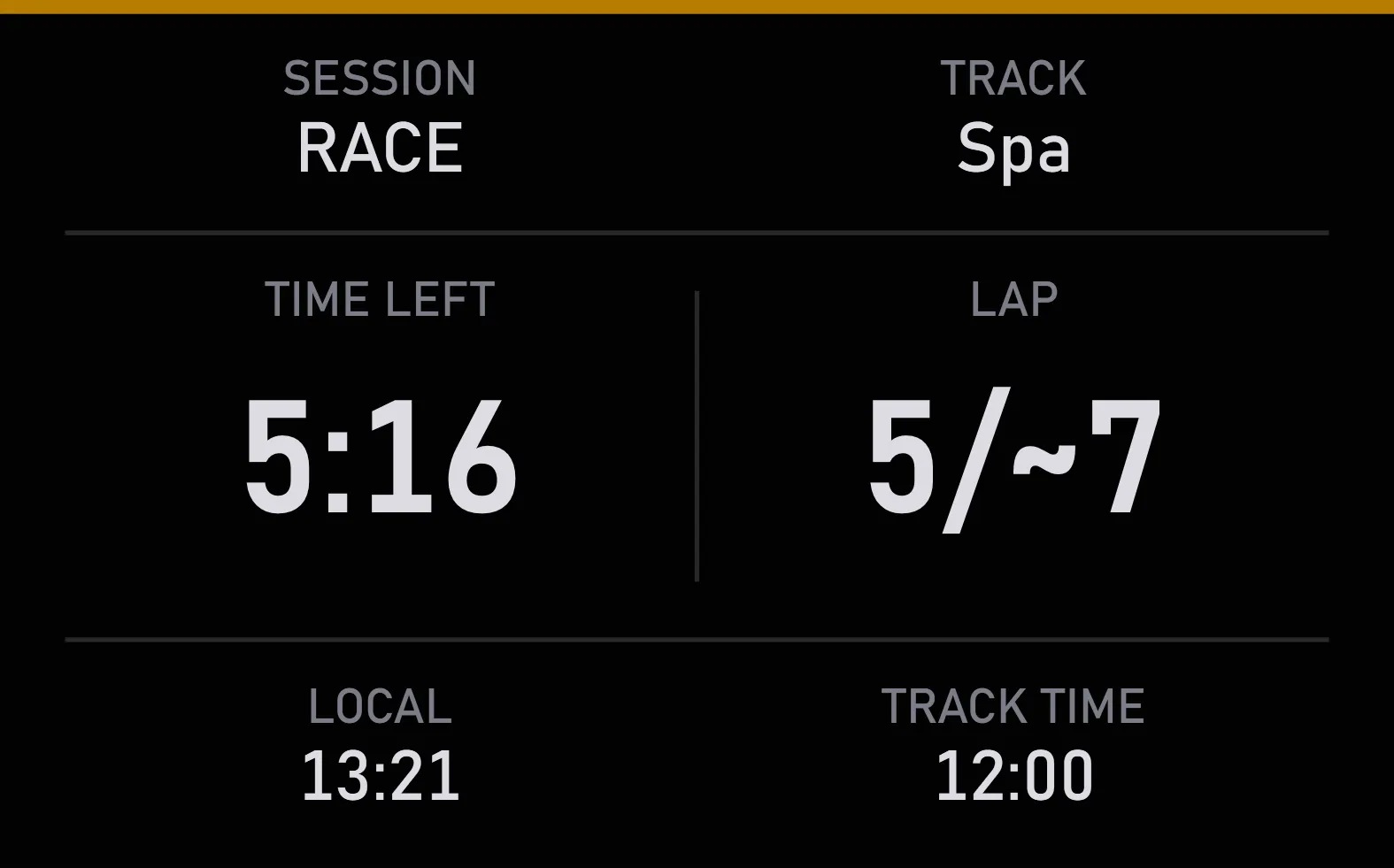
Session info
Time to the flag, which lap, and what time it is
All the useful session info in front of you: how long to the flag, which lap you're on, and what time it is.
More about it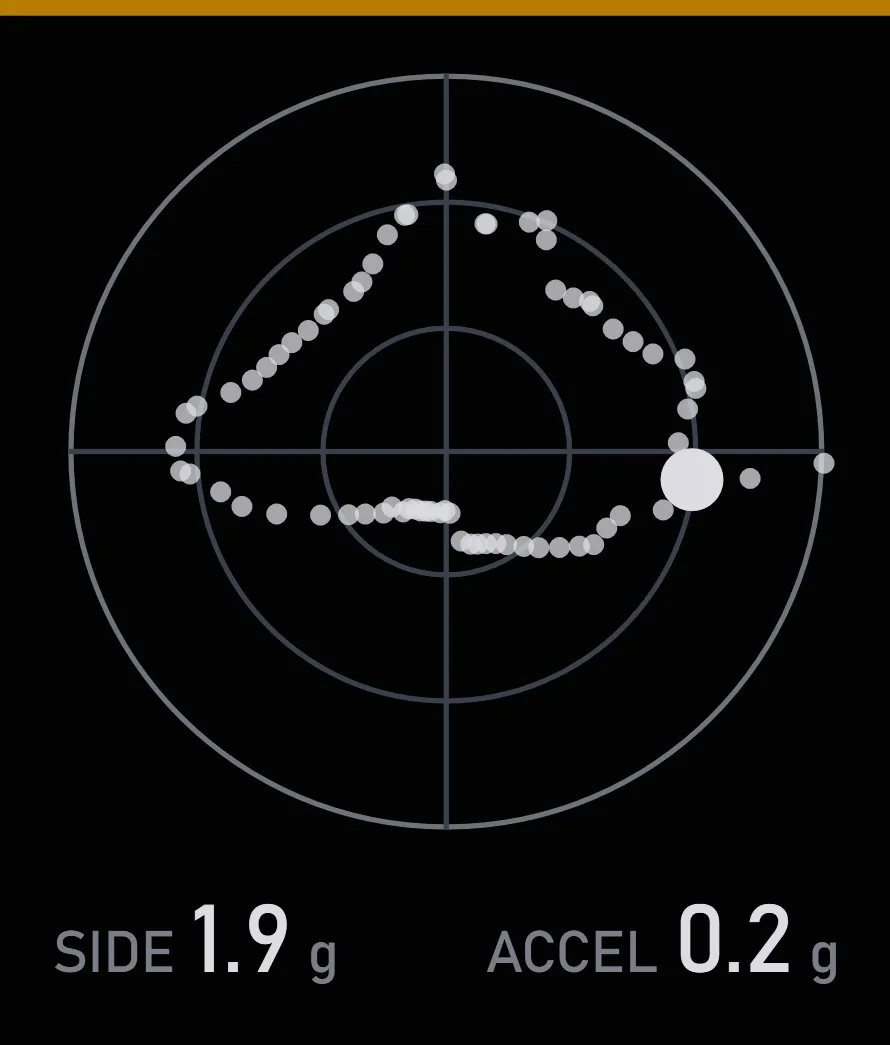
G-force
Cornering, braking and acceleration in g
Shows how hard the car is working in the corners, under braking and on the throttle. The diagram shows how much you took from the car over the lap.
More about it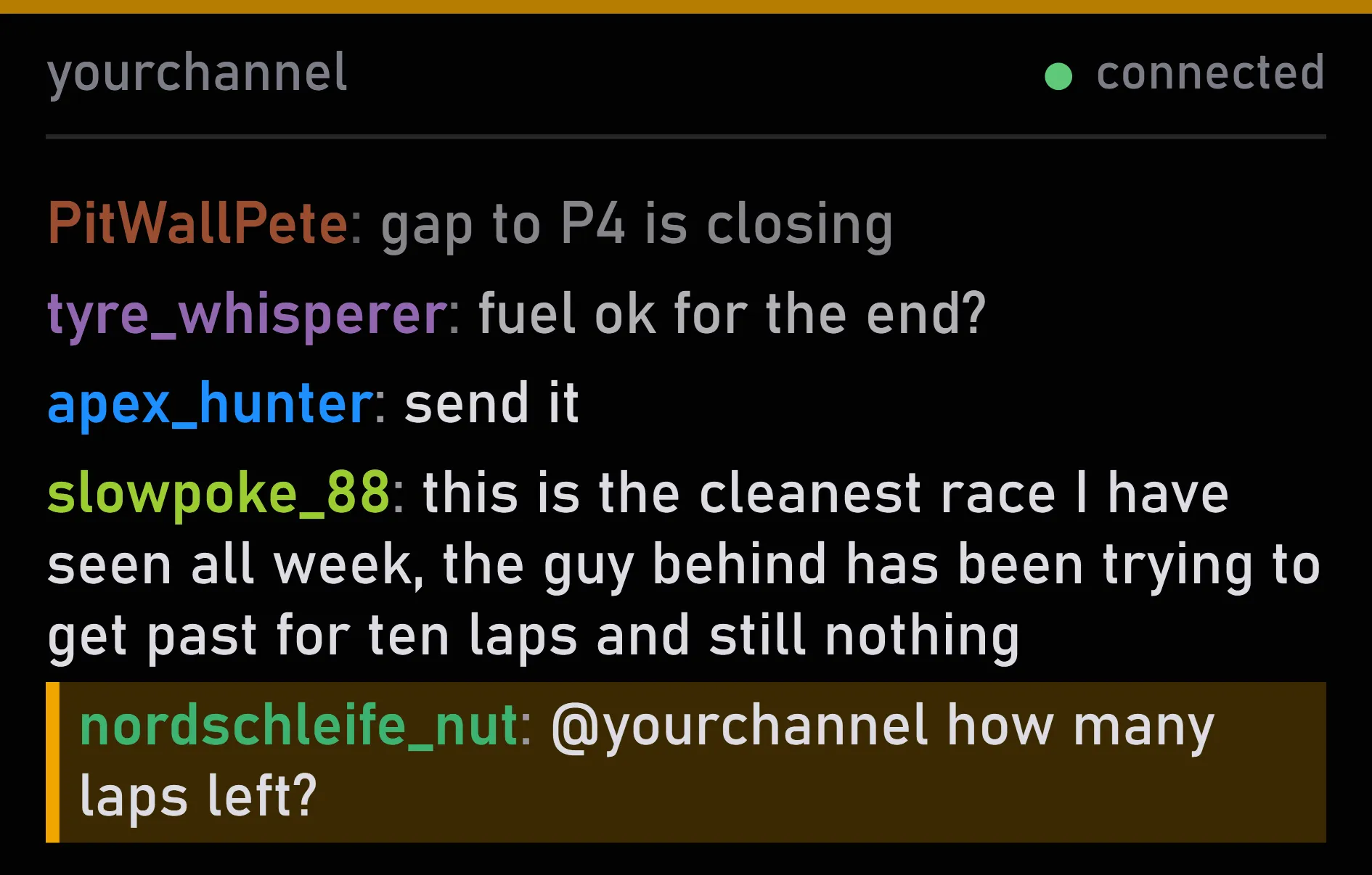
Twitch chat
Your channel's chat right over the sim
Streaming your races? Your channel's chat sits right over the game: you see what viewers write without a second monitor.
More about it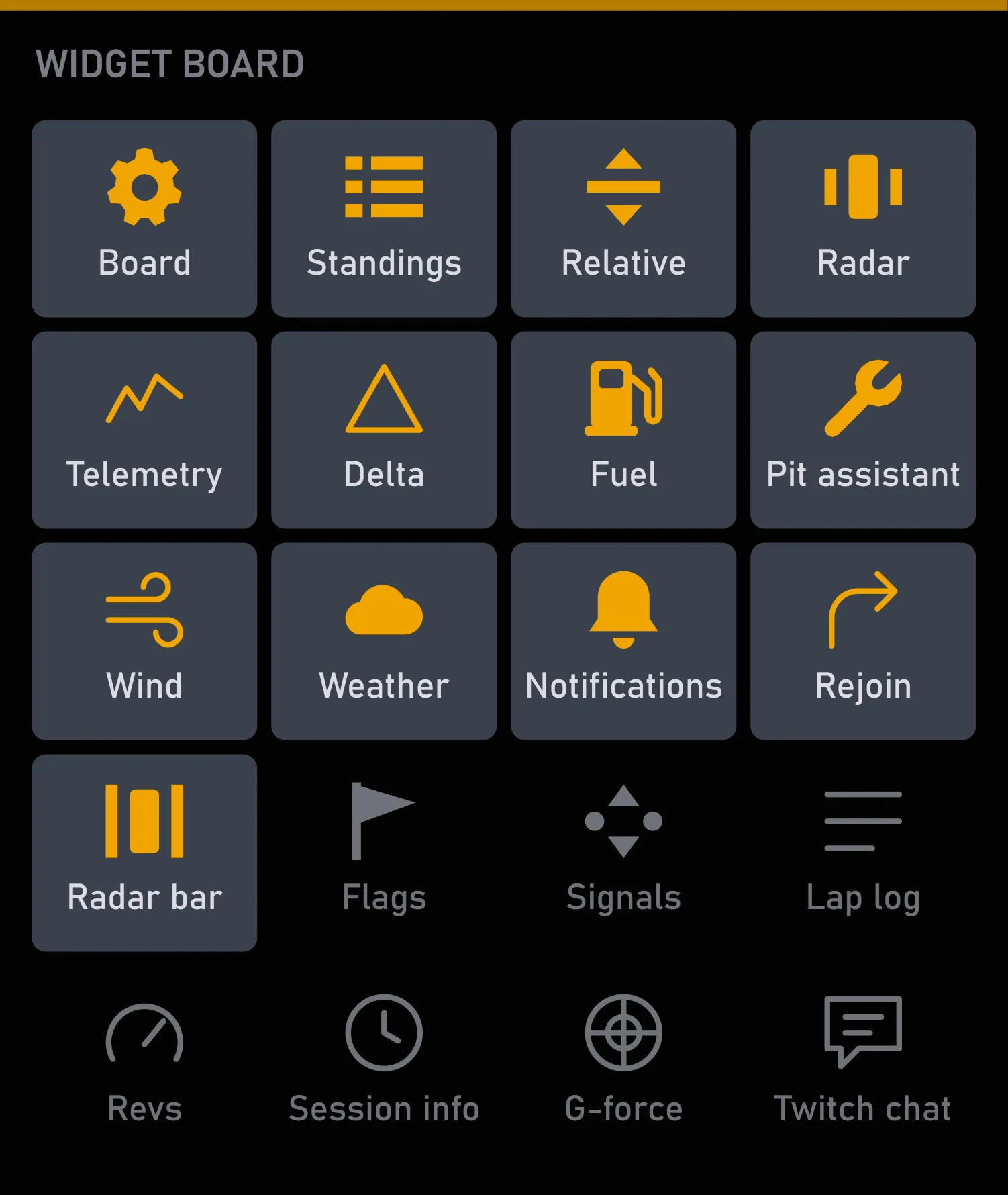
Widget board
Switch any widget on or off without leaving the game
All your widgets as tiles on one board: click a tile to switch a widget on or off without leaving the game.
More about itPerformance
Widgets that stay out of the sim's way
- Under 1% of the CPU on average, with every widget on
- iRacing's FPS barely changes