
Standings
The running order, grouped by class
What it is for
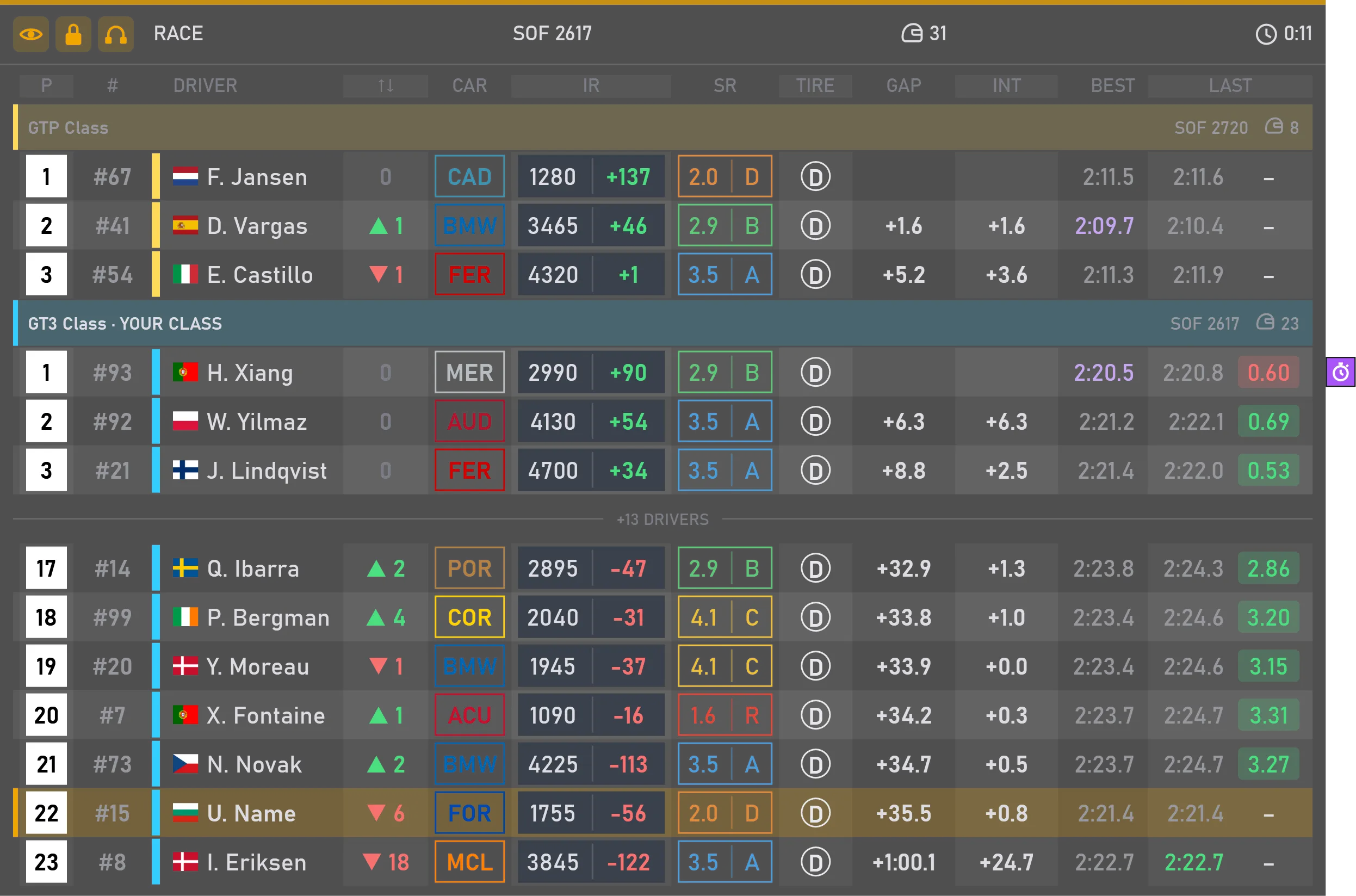
In a race you want to know not just who is where, but who you are up against. The standings can show more than thirty values about every car — from rating and tires to stints and pit stops — and you keep the ones you need. And only as many rows as you can read at speed: your class leaders and the cars around you.
Icons at the right of the row tell you what is happening to that car: in the pits, under a flag, fastest in class or already finished.
In a multiclass race each class runs under its own heading, showing its strength of field and number of cars, with your own class highlighted. The leaders of the other classes stay in view, and you choose how many. If you don't need them, keep to your own class.
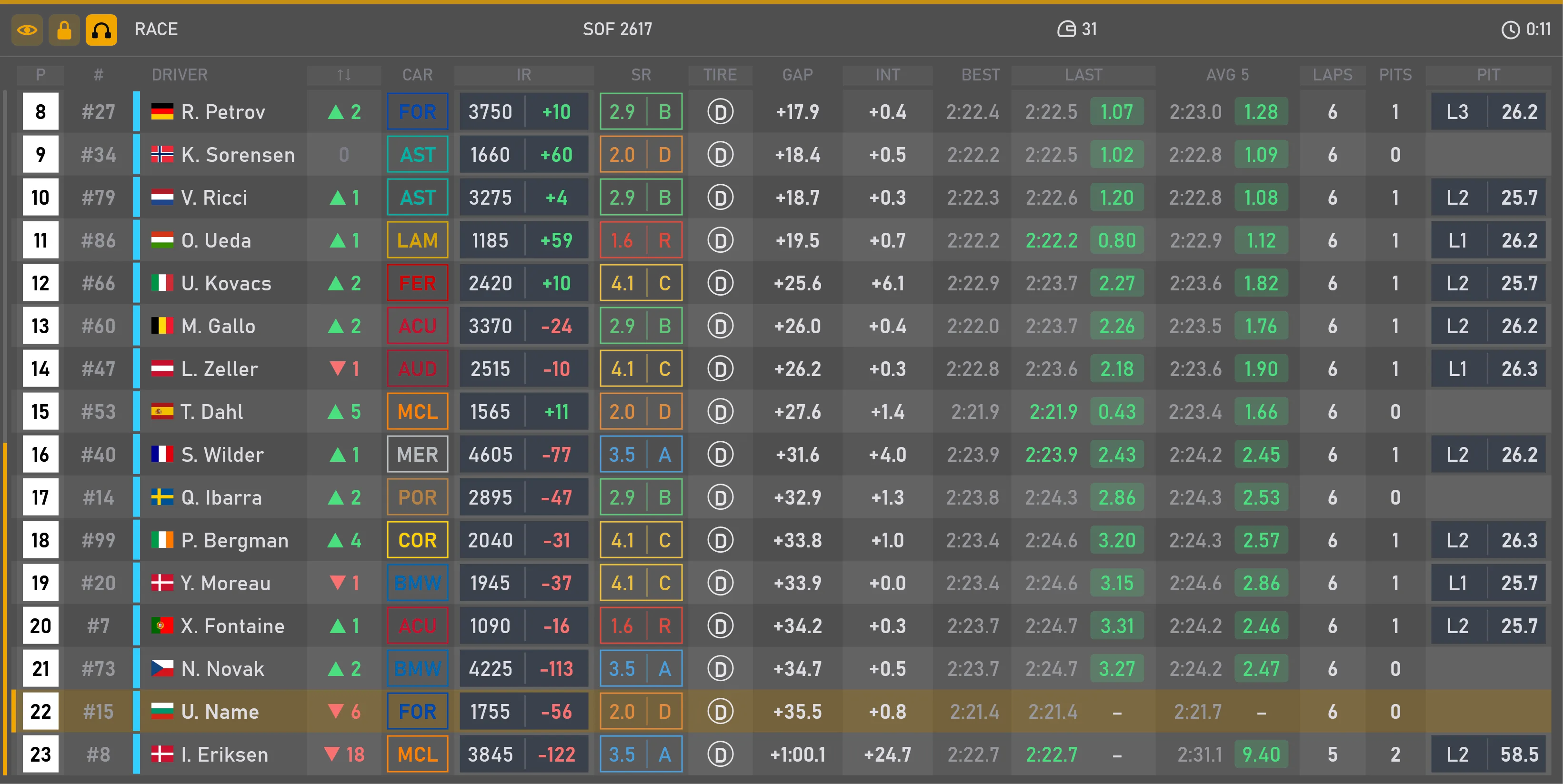
Press the headset and you get an engineer's table: it scrolls through every car, with average lap, laps, pit stops and when the last one was on every row. Press again and you are back to racing.
What you can tune
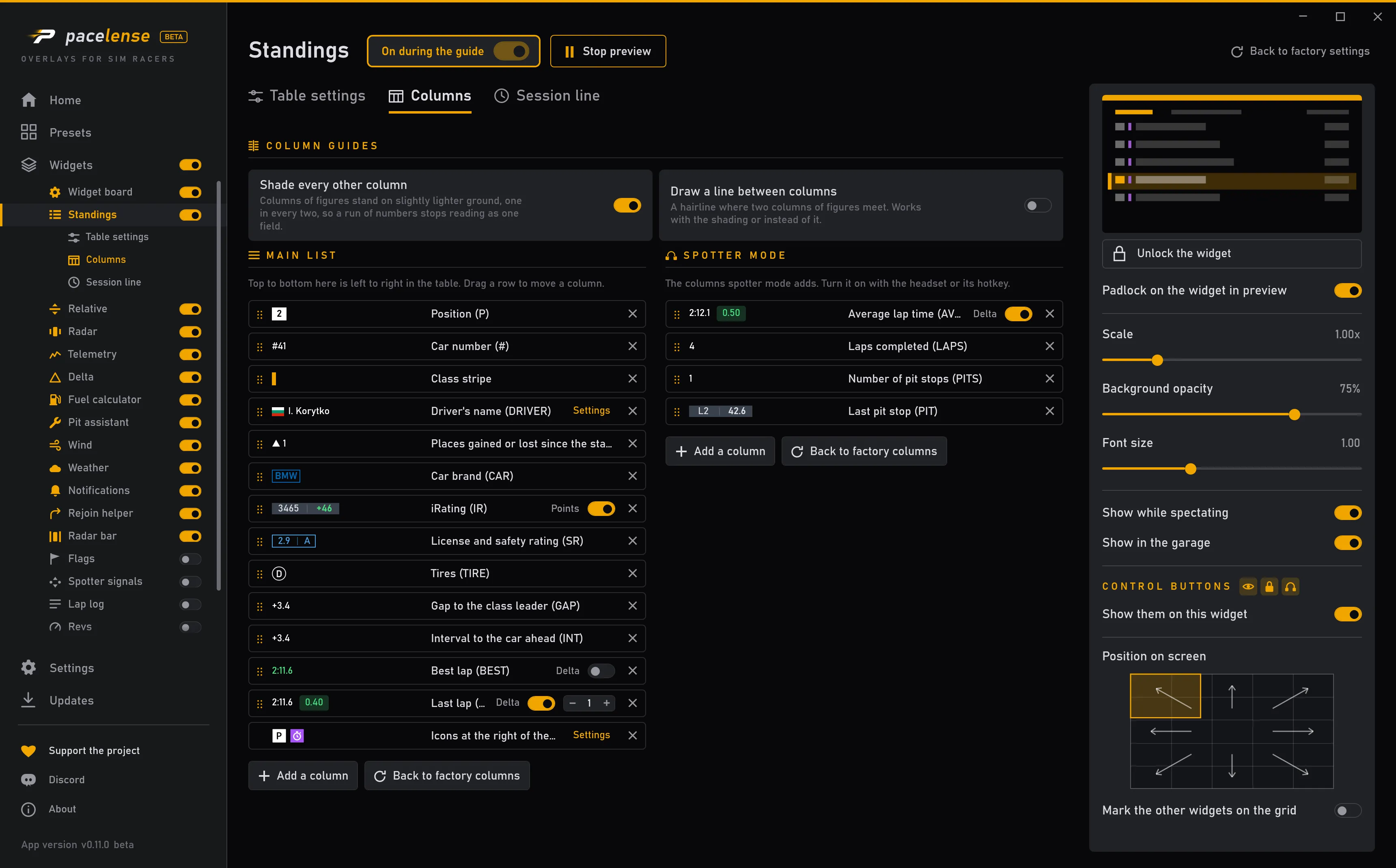
Pick the values you want and put them in any order. Some columns have settings of their own: for the name, how it is written and whether the country flag goes with it; for the last lap, whether the delta sits beside it.
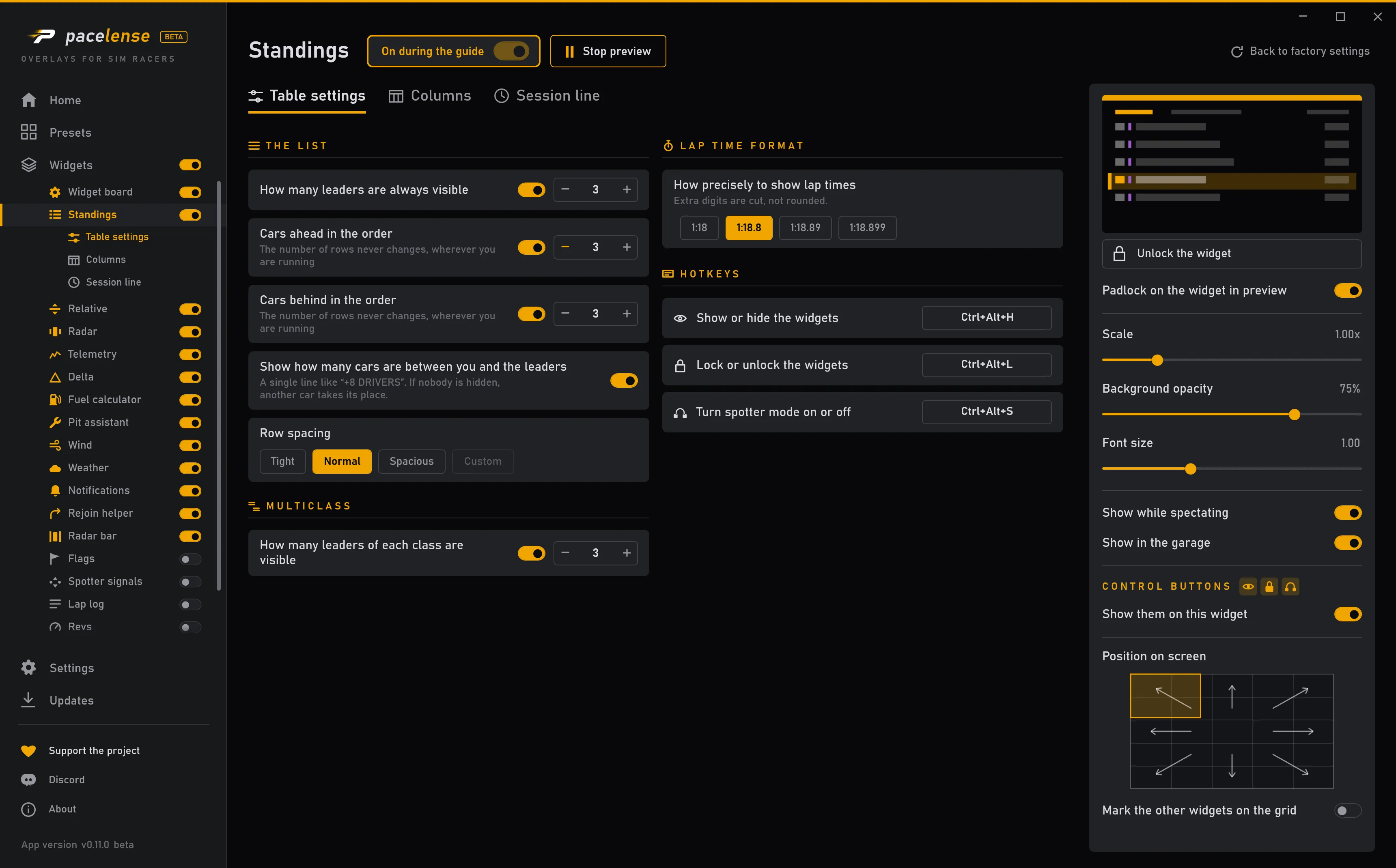
How many leaders stay on screen, and how many cars ahead of and behind you. The number of rows stays the same all race, wherever you are running.
Choose which columns appear when you switch on spotter mode: average lap, laps, pit stops — or any others.
A line above the table with the key facts of the session: strength of field, track temperature, your incidents, time left in the session and more. You choose what it shows.
Size, position and when it shows are set the same way for every widget.
Where you change it
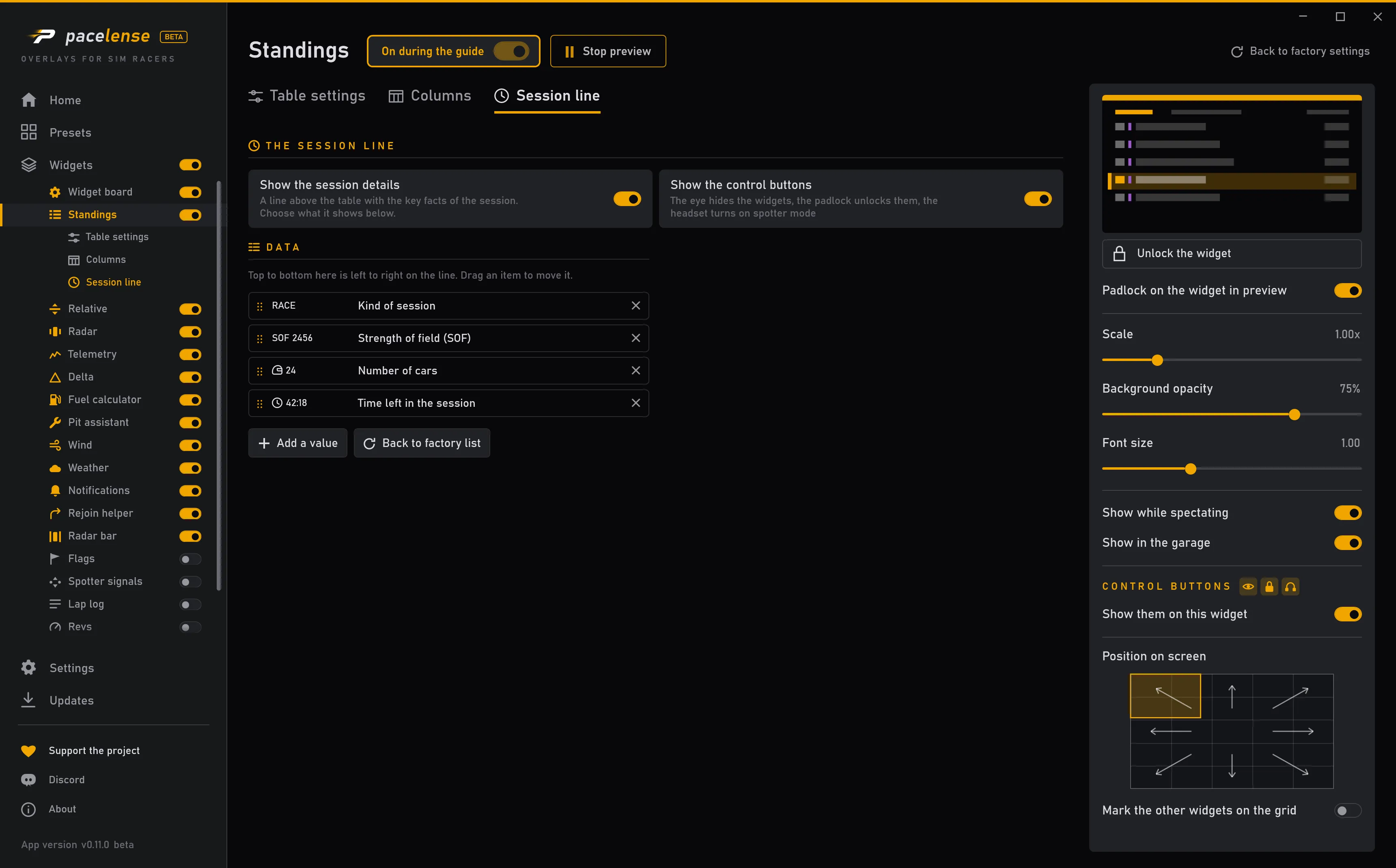
Each change takes effect at once — there is no apply button.